Author: Ben Owens

  • MFA: Exploring the Three Methods and How They’re Applied

    MFA: Exploring the Three Methods and How They’re Applied

    Introduction

    In this blog I’ll go through the three different methods of implementing MFA protection for sign-ins to your Microsoft 365 tenant. I’ll summarise how those methods differ and which you should consider implementing. Lastly, I’ll demonstrate how to generate a report on which of your accounts have registered for MFA and the check which methods they’re using.

    To enable MFA controls in, you essentially have three options:

    • Security Defaults
    • Per User MFA
    • Conditional Access

    (The focus of this blog is around the method of providing MFA protection using Entra ID and not via federated identity via ADFS or 3rd parties)

    Security defaults

    This is a global setting. It’s fundamentally an on/off switch for providing MFA protection for all account on in your tenant. It provides MFA protection across the board to all your accounts and with no exceptions.

    In practice, when signing into a new account, the user would have 14 days (from initial sign-in) to set up an MFA method. The user could choose to skip that if they wish, but after 14 days they would be forced to set up their MFA method. Subsequent logins would then be subject to an MFA claim to access the tenant.

    Security defaults was introduced in October 2019 and was primarily aimed at providing a baseline protection for all newly provisioned M365 tenants. Prior to this, tenants were created without any MFA protection by default.

    Key points to note about security defaults.

    • It is free with no additional subscription required for MFA protection
    • It’s enabled by default on newly provisioned tenants
    • There are no exceptions in MFA protection – this is important to note if you require an account login which cannot complete an MFA prompt.
    • You cannot use SMS as a verification method – although this is generally discouraged now
    • User are required to register for and use the Microsoft Authenticator app

    Per-User MFA

    As its name suggests, it’s enabled on a per account basis. In comparison to security default, this does give you the flexibility to make exceptions to accounts. However, it’s benefit is also it’s Achilles’ heel. You must proactively enable per-user MFA on an account, either via script or via the admin console. If you don’t enable per-user MFA on that account, it will not have MFA protection.

    Key points to note about per-user MFA defaults

    • It is free with no additional subscription required for MFA protection
    • You control which accounts have MFA protection
    • There are no exceptions in MFA protection – this is important to note if you require an account login which cannot complete an MFA prompt

    Conditional Access

    By using conditional access to implement MFA protection you have far greater flexibility in the scenarios where MFA is required. For example, you could require MFA for all users, but make exclusions for accounts connecting from a particular location.

    By using conditional access policies, you can also go much further in your ruleset around MFA controls. For example, conditional access policies can used to require that only managed organisational devices can access certain M365 resources. The level of access can also be controlled to those resources. For example, restricting the ability to sync or download attachments in Exchange Online and Sharepoint (in combination with EXO and SPO settings).

    Unlike security defaults and per-user MFA, conditional access requires an Entra ID premium P1 license. This comes bundled in with Microsoft 365 E3 plans and above (a plan commonly in use for medium sizes businesses). It also comes bundled with Microsoft 365 business premium plans too.

    Key points to note about per-user MFA defaults:

    • Requires an Entra ID Premium P1 or above license for each user logging into the service
    • Can provide MFA for all accounts by default and allow exceptions in specific conditions
    • Provides greater flexibility in your conditions required
    • Can provide much more than just controls around MFA verification

    Which Method Takes Precedence?

    You would only use 1 of these 3 methods of providing MFA protection. The way they’re implemented is basically in order of three, so be aware if you’ve enabled more than 1 way to provide MFA protection.

    1. The method which takes precedence (if enabled) is security defaults. This is a broad brush on/off settings; so, if you have that enabled, then per-user MFA or a conditional access policy will not function as expected for a user’s login.
    2. If you want to use per-user MFA, you will need to switch off security defaults. You will then be using MFA on a per account basis.
    3. If you want to use conditional access for providing MFA protection, then the users scoped to your conditional access policies shouldn’t be enabled with per -user MFA. Although possible, I wouldn’t recommend using a mixture of per-user MFA protection for some accounts and conditional access MFA protection for others. This can be confusing for troubleshooting and will likely results in security gaps.

    Which Type To Use?

    For a new tenant, you would initially use security defaults. It’s turned on by default and you would use that protection at the start before deciding.

    If you tenant will have a relatively small number of users, and you didn’t have a license plan which included Entra ID Premium P1 or above, then security defaults is good option.

    If you want to get more flexibility, or if you want to have exceptions, then per user MFA is a better fit. But obvious negative is that you need to make sure that users are enabled for MFA as soon as you provision them.

    If you have you users licensed for Entra ID premium P1, then looking to adopt conditional access policies would make sense. This way you can have a policy that affects all users by default requires no manual tasks. Users would be enabled by MFA by default, but also gives you the flexibility of implementing exceptions for those as well.

  • OneDrive: Overcoming Challenges of Migrating from Folder Redirection

    OneDrive: Overcoming Challenges of Migrating from Folder Redirection

    Introduction

    This should provide you with a way to control the switch from Network Folder Redirection to OneDrive KFM backup/sync that is targeted on per user basis rather than OneDrive KFM being attempted for any user logging onto that device subsequently.

    When it comes to Intune Configuration Profiles or Group Policies, they typical split into user policies (HKCU registry branch) and computer policies (HKLM registry branch). 

    For implementing policies relating to OneDrive, the settings which relate to the automated set-up of OneDrive login and Known Folder Move are held under computer policies. Those are chiefly:

    • Silently move Windows known folders to OneDrive
    • Silently sign in users to the OneDrive sync app with their Windows credentials

    Because those settings are set on a computer basis, once those settings are configured on a workstation it will result in OneDrive attempting seamless-sign-on and configuring KFM for any other logins to that device (subject to the accounts being licenced in M365). 

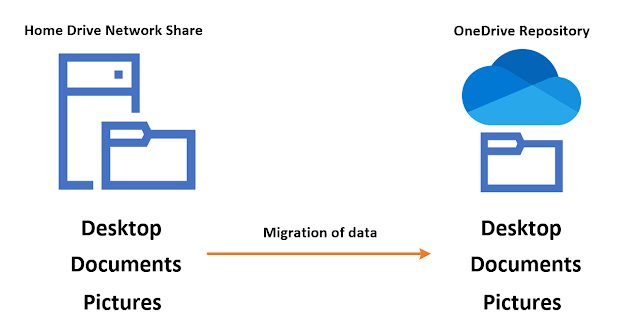
    I hear you ask, ‘what’s the problem, surely backing up the Desktop, Documents and Pictures folders to OneDrive by default is a good thing?!’ Well, I agree, but in certain cases you may not want invoke that on every user logon to the device.

    A Use Case 

    This scenario required control on who was in scope of implementing KFM. The setup summary was as follows:

    • Hybrid Azure AD Joined and Intune Managed Laptops
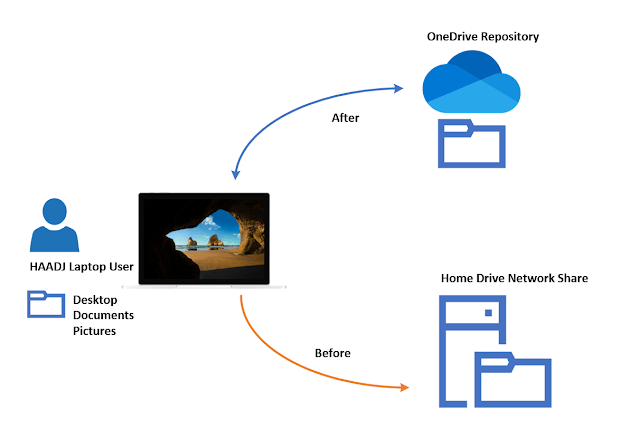
    • Documents and Pictures folder set-up using Network Folder Redirection to point to a UNC Path e.g. \\servername\%username%\documents
    • OneDrive was signed in, but KFM disabled

    Now with network folder redirection in place, implementing KFM is not supported. It will work in this scenario but can result in undesired consequences. 

    For example, OneDrive will attempt to move (not copy) the files from the network location to the OneDrive KFM location e.g. C:\Users\John.Smith\OneDrive – Organisation Name\Documents\. This could result in a couple of different outcomes, depending on the user configuration during the time of login and subsequently the time which OneDrive will attempt to implement KFM:

    1. If you have line of sight to your UNC path at the point of login, OneDrive KFM will attempt to move your files from your network folder and to your local OneDrive folder. It will then start syncing those to your OneDrive folder.  So it’s downloading your files locally first, and then uploading them to OneDrive. Incidentally this can cause concern as the files appear deleted from the network drive and depending on the amount of files you have and network connection, the download of the files can take a long time to complete, and then you have the upload to OneDrive. 
    2. If you have NO line of sight to your UNC path, OneDrive will still implement KFM, but because it’s unable to move your files, your Desktop and Documents and Pictures will not include any of the files from your network folder. So KFM would be implemented, but your files remain in your network location.

    Requirements

    The requirement and plan was to use third party tool for migrating the data from the users network drive to users OneDrive, meaning there was no need to move the files using the built-in OneDrive KFM functionality. 

    The following pieces were needed for the client-side set-up as part of migrating the users files in the background:

    • Remove network folder redirection for a user’s Documents and Pictures folders
    • Set the Desktop, Documents and Pictures folder paths to the users OneDrive path
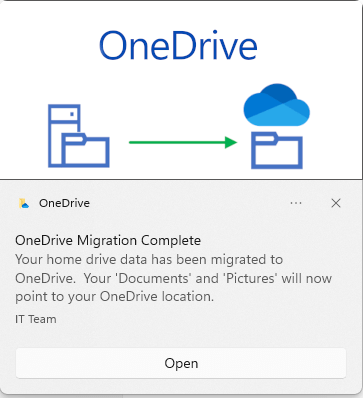
    • Toast notification that the files are now stored in OneDrive

    Script Approach

    I put together a PowerShell script to achieve the requirements above. As the devices are managed in Intune, I packaged the PowerShell script as a Win32 app and deployed under the context of the users.

    You can download the files from here – https://github.com/benjaminjamesowens/OneDriveKFMPerUser

    The script will carry out the following:

    • Check whether the paths for Documents, Pictures point to a UNC path (if they don’t the script will not continue).  You can include the Desktop in the script if you wish.
    • Sets the Documents and Pictures folder to point to the OneDrive path using Shell32 (meaning no need to logoff and logon for the change to be reflected in file explorer.
    • Records the registry values of the Desktop, Documents and Pictures folders before and after
    • Attempts to upload a log of the before and after, along with a PowerShell transcript file to a network location.
    • Displays a Toast Notification that the change has been completed.
    • Creates a tag/detection file so that Intune can detect that the package has completed.

    The script also includes a function to move the files from the previous source to the target, however I have commented out those sections, as I used a third-party tool to migrate the data in the background.

    Prep and Packaging in Intune

    To create the package for Intune, you will need to carry out a few tasks in the script:

    • Navigate to the Declarations section of the script and modify the values for your log file name and upload location 
    • Amend the Toast Notification text at the bottom of the Execution section of the script
    • Amend the PNG that is displayed as part of the toast notification
    • Package the amended script using IntuneWinAppUtil.exe – you can see an example MakeApp.cmd for that
    • Create the Win32 App in Intune and set the values using the file IntuneDetails.txt

    Summary

    This should provide you with a way to control the switch from Network Folder Redirection to OneDrive KFM backup/sync that is targeted on per user basis rather than OneDrive KFM being attempted for any user logging onto that device subsequently. Please let me know if you have any comments or questions.

  • Assigning Enterprise Licences to Entra Hybrid Joined Devices

    Assigning Enterprise Licences to Entra Hybrid Joined Devices

    Introduction

    Let’s set the scene of this scenario…

    You have a Windows estate running Windows 10 or 11 Pro. You have M365 licences in your tenant plan which includes Windows 10/11 Enterprise licences and you want to apply those Enterprise licences to your devices.

    From with Windows 10 version 1703, a feature called ‘Subscription Activation’ was provided. This enabled users to ‘step-up’ from a Windows Pro licence to Windows Enterprise licence automatically, so long as the users is assigned a Windows Enterprise E3 or E5 licence option in their M365 tenant.

    The Subscription Activation feature eliminates the need to manually deploy Windows Enterprise or Education images on each target device, and then later standing up on-prem key management services such as KMS or MAK based activation, entering GVLKs, and subsequently rebooting client devices.

    It’s important to note that the Windows Enterprise subscription activation is designed to ‘step-up’ a device from Windows Pro to Windows Enterprise. Therefore, your device is required to have a Windows Pro license activated as a foundation. For most device procured for business, the Windows Pro key is built-in to the firmware of the device – but it’s worth noting if you’re testing in a lab environment where your device isn’t initially assigned a Windows Pro licence.

    For Windows Enterprise Subscription Activation to function, there a several prerequisites which need to be in place. This blog is aimed at organisations which have Active Directory on premises and synchronise their AD objects to Entra ID (formerly Azure AD) via AAD Connect.

    Prerequisites

    The below provide a summary breakdown of the prerequisites required in the setup on AAD Connect:

    • AAD Connect | Setup Check/Update
    • AAD Connect | Entra Hybrid Join
    • AAD Connect | Review/Amend OU Sync Scope
    • Client Device | Internet Access to Entra ID via SYSTEM Account
    • Client Device | Internet Access to Entra ID via User Account
    • Client Device | SSO Local Intranet Settings
    • Client Device | Windows Pro Licensed and Activated
    • Entra ID | Valid Subscription Present
    • Entra ID | Applicable Users Licensed with Windows Enterprise

    AAD Connect | Setup Check/Update

    To facilitate Windows 10 Enterprise Subscription Activation, AAD Connect needs to be configured with the following:

    • Version of 1.1.819.0 or above (you need to be v2 now anyway)
    • Entra Hybrid Join enabled and configured
    • Sync scope to include the OU’s which contain the applicable computer objects

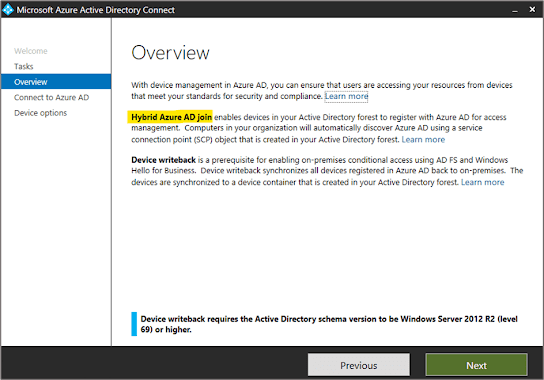
    AAD Connect | Hybrid Azure AD Join

    An Entra Hybrid Joined device is one that’s joined to Active Directory on premises and also sync and joined to Entra.

    Configuring Entra Hybrid Join via AAD Connect essentially creates a Service Connection Point in Active Directory on premises with details on your M365 tenant.  

    That SCP will be used by a client device as part of the Entra Hybrid Join process when enabled via AAD Connect.

    NOTE: Instead of configuring an SCP via AAD Connect, you can choose to control which devices attempt Entra Hybrid Join by using targeted deployment – This essentially lets you deploy two registry keys to the devices you wish to target for Hybrid Join. See the following for more details on that route – https://learn.microsoft.com/en-us/entra/identity/devices/hybrid-join-control .

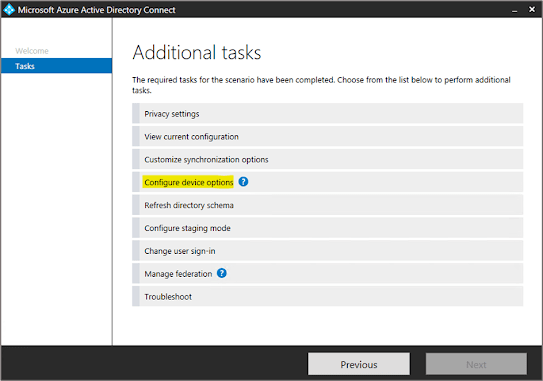
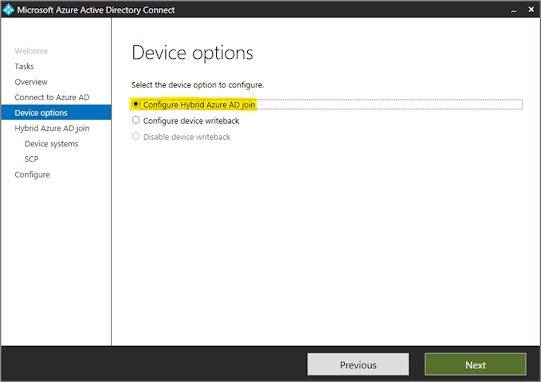
    To deploy the SCP via AAD Connect. Within the AAD Connect wizard navigate to Configure Device Options:

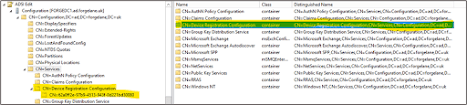
    Below is an example of the where the SCP shows in Active Directory:

    AAD Connect | Review/Amend OU Sync Scope

    For a device to become Hybrid Azure AD Joined, the sync scope of AAD Connect needs to include the organisational units which contain the user accounts which will have a Windows 10 Enterprise licenses assigned and computer objects which require a Windows 10 Enterprise Subscription to be assigned.

    If required, amend the scope using the AAD Connect wizard as shown below:

    Client Device

    To allow user to carry out Windows 10 Enterprise Subscription Activation on a Windows device, the following needs to be configured on the client side:

    • Internet Access to Azure AD via SYSTEM account
    • Internet Access to Azure AD via User Account
    • SSO IE Local Intranet Settings
    • Device licensed and activated with Windows 10 Pro

    Client Device | Internet Access to Azure AD via SYSTEM Account

    Before a user can successfully obtain a Windows 10 Enterprise Subscription Activation, the device in question must be Hybrid Azure AD Joined.

    For a device to become Hybrid Azure AD Joined, the built-in SYSTEM account requires internet access to Azure AD for the following addresses:

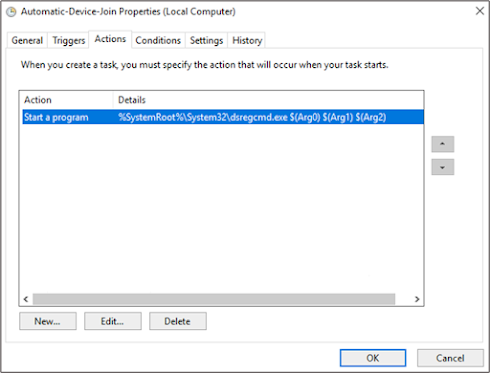
    There is a scheduled task in Windows 10 under \Microsoft\Windows\Workplace Join called Automatic-Device-Join.  The task is scheduled to run as the SYSTEM user and run with the highest privileges.  The task is triggered to run every time somebody logs onto the workstation and every hour for the duration of 1 day.

    The main point of the scheduled task is to obtain a unique certificate which is then written to the UserCertificate attribute.  Without the UserCertificate attribute populated, the computer object will not synchronise from AD on premises to Azure AD.

    If your device has direct access to the internet this should function without an issue. If a proxy server is used to filter web traffic, this can cause issues where the SYSTEM account is unable to access Azure AD over the internet.

    Where a proxy server is in place and you don’t have direct internet access via your default gateway, you typically have the following options:

    1. Make network/proxy changes to allow traffic to Azure AD via the default gateway

    2. Make exceptions and push out proxy settings for computer objects via SYSTEM account for example via WPAD (Web Proxy Auto-Discovery) – https://docs.microsoft.com/previous-versions/tn-archive/cc995261(v%3dtechnet.10) 

    Automatic Device Join Scheduled Task

    Details on the scheduled task which obtains and writes the UserCertificate back to AD on premises are below:

    userCertificate Attribute

    In the example below you can see the userCertificate attribute is populated after the Automatic-Device-Join task has run:

    Before:

    After:

    AAD Connect Device Sync Rule Filter

    The below show the AAD Connect Sync rule which qualifies whether a computer object has the userCertificate attribute populated to qualify it for sync to Azure AD: 

    Test Azure AD Connection for SYSTEM account

    To test the connectivity to the internet under the context of the SYSTEM account, you can download and run the Test Device Registration Connectivity Script from Microsoft.  This creates a temporary scheduled task which runs as the SYSTEM account to test for successful connection to Azure AD.

    https://gallery.technet.microsoft.com/scriptcenter/Test-Device-Registration-3dc944c0

    Example where it fails:

    Example where it’s successful:

    Manually setting proxy for SYSTEM account

    Below is an example of how to set the proxy server to be used under the context of the SYSTEM account.  This is helpful for testing and troubleshooting:

    Entra Hybrid Join status

    Below is an example of a device showing as Hybrid Azure AD Joined in Azure AD:

    Client Device | Internet Access to Entra ID via User Account

    For a user to successfully obtain a Windows Enterprise Subscription Activation from an Entra Hybrid Joined machine, the user must have internet access.  This can be via a proxy server or direct internet access via the default gateway of the machine.

    Client Device | SSO IE Local Intranet Settings

    In order to provide Seamless SSO for the license subscription to works silently, the following URL’s should be added into the users Local Intranet zone in Internet Explorer:

    You must also enable Allow updates to status bar via script in the user’s Local Intranet Zone.

    Push Out Settings via Group Policy

    You can push out the Local Intranet Settings to users via a Group Policy.  Below is an example of the settings which need to be configured under the user context:

    Client Device | Windows Pro Licensed and Activated

    For the step-up in license from Windows Pro to Enterprise to occur, you’re required to have your device licensed and activated with Windows Pro as a foundation.

    Note, starting from Windows 10, version 1803 pulls activation keys directly from firmware where the device support firmware-embedded keys.  It is no longer necessary to run a script to perform the activation step on Windows Pro prior to activating Enterprise.

    Windows Edition Check

    Below is an example of how the Windows 10 Pro license should display prior to step-up in license.  Disregard the partial product key as this may be different prior to the step-up in licensing:

    Azure AD

    To allow a user to carry out the step-up in licensing from Windows Pro to Windows Enterprise the following needs to be in place in Entra ID:

    • An applicable license plan in the M365 tenant
    • A license assigned to the applicable users for the step-up in licensing

    Azure AD | Valid Subscription Present

    A valid subscription will need to be procured and showing as present in the Azure AD/Office 365.  This typically shows under a Microsoft 365 E3 or Microsoft 365 E5 but can also show as a different license plan.

    Azure AD | Applicable Users Licensed with Windows 10 Enterprise

    The user account that will used to carry out the license step-up activation need to have a Windows Enterprise license.

    An example from the Entra ID portal is below:

    Enable Licence Subscription

    The enabling licence subscription tasks can be found under scheduled tasks:

    Windows Subscription Activation

    With the previously outlined prerequisites in place, after a user has logged into the Windows Pro workstation, you should find the license has been updated to Windows Enterprise.

    • Note, in some places the license will still appears as Windows Pro.
    • Note, that the partial product key should show with the value 3V66T.
    • Note, a user can license up to 5 devices with their user account. The activation is like a queue, the 1st activated device will drop off the list when a 6th one is activated etc.
    • At the present time, there’s no documented way to verify which and how many devices have been licensed by user account in Entra ID.
    • Upon revoking the license from the user in M365, the license will downgrade back to Windows 10 Pro.